
Lead Generation
Overview
Lead generation in Vitay allows your organization to turn the reference experience into a recruiting touchpoint. When enabled, references who complete a reference check will see a prompt asking if they are interested in opportunities — whether that means exploring open roles, being contacted as a potential client, or any other category you define. Any reference who opts in becomes a lead, tracked directly in Vitay alongside their reference activity.
The benefits of enabling lead generation include:
- Passive talent sourcing — references who have already demonstrated engagement become warm leads for future recruitment.
- Increased conversion — the prompt appears at the end of a completed reference, when the reference is already engaged with your brand.
- Centralized tracking — leads are listed in Vitay's Leads page with their contact email and current status, so nothing falls through the cracks.
- Flexible configuration — you can define up to three distinct lead types (e.g., candidate, client, other) each with their own messaging, follow-up content, and notification routing.
Access note: Lead generation settings are only accessible to root users. If you do not have access to these settings, please reach out to a root user in your organization.

What Are Lead Types?
A lead type is a category of interest that a reference can select when opting in. For example, you might have one lead type for candidates interested in job opportunities, and another for potential clients interested in your services.
You can configure Vitay to prompt references with no lead types, one lead type, two lead types, or three lead types.

-
No lead types selected: References will see a description from your company (with any links you choose to include) but will not be able to submit themselves as a lead. No leads will be tracked in Vitay. This is useful if you simply want to direct references to an external page, such as a careers site.
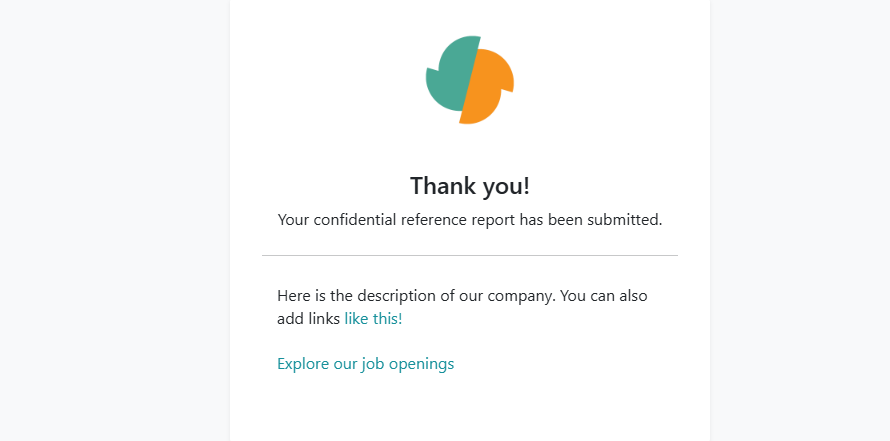
No lead types collected -
One, two, or three lead types selected: References can actively select one or more categories of interest and submit their email address. These submissions are captured as leads in Vitay's Leads list page, where you can manage and follow up with them.
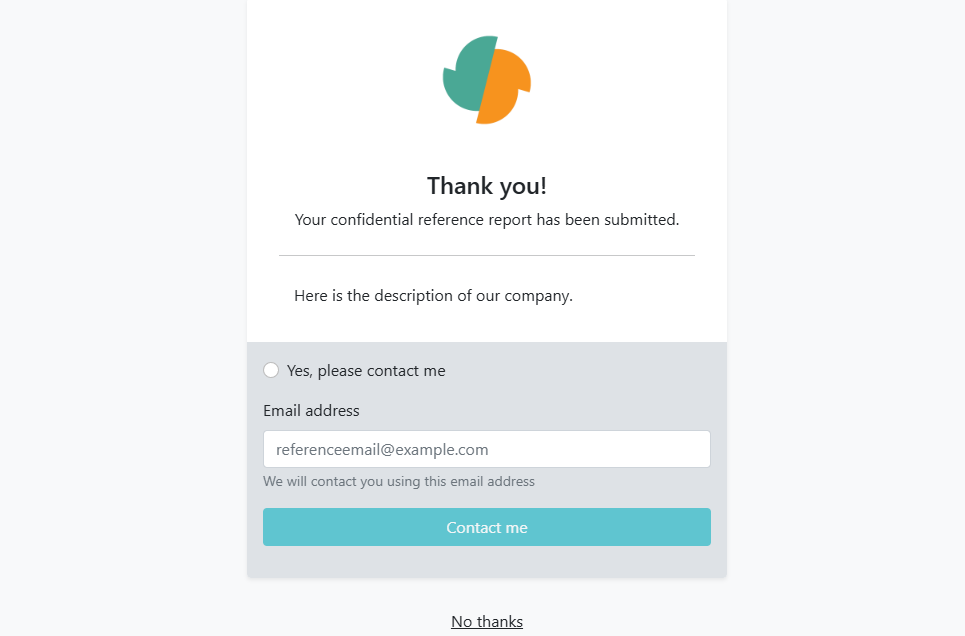
1 lead type collected
Settings
Company Description
The company description is shown to all references regardless of which lead type configuration you use. Use this field to introduce your company, explain why you're reaching out, or add relevant links — for example, a link to your staffing page or careers site.
If you have no lead types configured, this is also where you should add any links or calls to action you want references to see, since there will be no lead type checkboxes or form submission.
The description field supports rich text formatting including bold, italic, lists, and hyperlinks.

Lead Type Configuration
Each lead type you enable can be customized with the following fields:
Name The internal name for this lead type. This is used in the Vitay interface and on the lead's profile to identify which category they selected.
Checkbox Text The text displayed to the reference alongside the selection checkbox. This is what the reference reads when deciding whether to opt in. For example: "I would like to be notified of job opportunities" or "I am interested in your staffing services."
Thank You Message (optional) If provided, this message is shown to the reference after they submit themselves as a lead for this type. You can use this to set expectations, explain next steps, or include a link to further resources. If left blank, no message will be shown.
Button Text and Button Link A button can be displayed alongside the thank you message. Enter a label for the button and the URL it should link to. If the button link is left blank, no button will appear.
Notifications For each lead type, you can configure where an email notification is sent when a reference submits this lead type. Options include:
- Root user — the notification is sent to the primary root user for your company.
- Assigned recruiter — the notification is sent to the recruiter assigned to the reference's request.
-
Custom email address — notifications for this lead type are always sent to a specific email address you define, regardless of which recruiter is assigned.
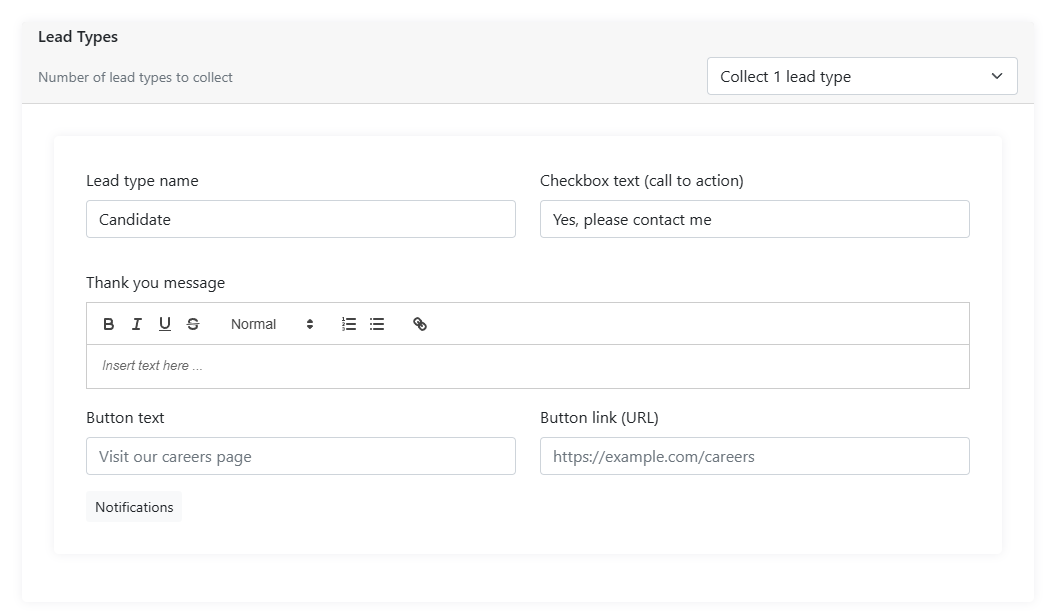
Lead Email
When one or more lead types are configured, an email field is shown to the reference as part of the submission form. This field is required — references must provide an email address to submit themselves as a lead. This email represents the address they would like to be contacted at, and is displayed on the Leads list page and on the individual lead's profile.
Lead Status Tracking
On a lead's profile (accessible by clicking on a lead from the Leads list or References list page), there is a status dropdown on the right-hand side. Use this to track where you are in the follow-up process. The available statuses are:
- Process Initiated — the lead has been received but not yet acted on.
- Contacted — you have reached out to the lead.
-
Completed — the follow-up process for this lead is finished.
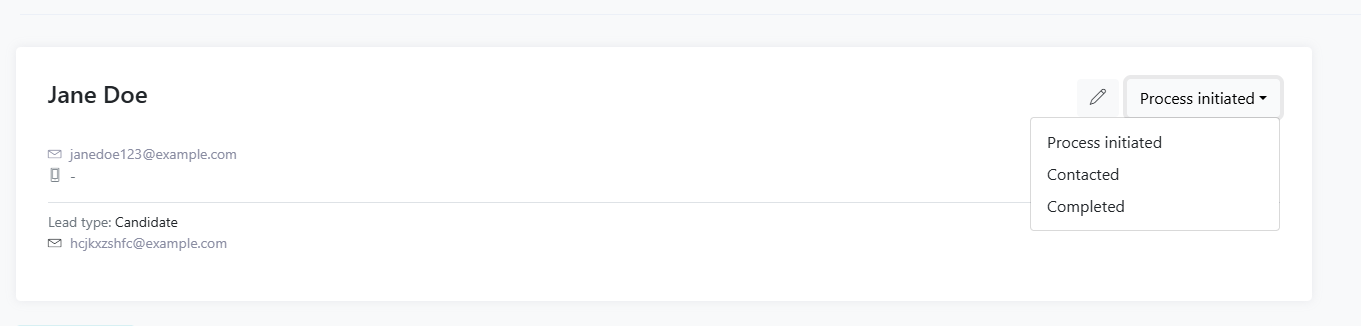
Translations
If your organization has multi-language support enabled, translation fields are available near the top of the lead generation settings page. You can provide translated versions of the company description and all lead type fields for each language you have enabled.
It is essential to configure these settings for every language your organization supports. References who complete a reference in a non-default language will see the translated version of your lead generation content.

Interactive Preview
At the bottom of the lead generation settings page, there is an interactive preview that simulates what references will see. It is strongly recommended to use this preview after making any changes, so you can verify that each field appears as intended. This is especially useful when testing thank you messages, buttons, and translations.

Migrating from the Previous Lead Generation Settings
If your organization had lead generation configured before this update, your settings have been automatically migrated. The details depend on which type you had previously.
Previously: Careers
If you had the Careers lead generation type, you will now have lead generation enabled with no lead types selected. The button that previously linked to your careers page has been moved into the company description as a hyperlink reading "Explore Job Openings", preserving the same experience for references.
With this setup, no leads are tracked in Vitay — references are simply directed to your careers page. If you would like to start capturing leads directly in Vitay, we encourage you to try adding a lead type. You can use the interactive preview to test the experience before making it live.
Previously: Staffing
If you had the Staffing lead generation type, you will now have lead generation configured with two lead types. These lead types carry over the same names and checkbox text that were used previously (Candidate and Client).
You now have the ability to rename these lead types, update the checkbox text, and configure what references see after they submit — including a thank you message and a follow-up button. Notification routing for each lead type can also be adjusted independently.